Instructions for inserting delta symbol in Excel

The delta symbol in Excel, also known as the triangle symbol in Excel, is used a lot in statistical tables, expressing increasing or decreasing numbers, or any data according to the user's wishes. And to be able to insert delta data in Excel, you have many different ways, using the special character insertion tool in Excel or using shortcut keys. The following article will guide you to insert the delta symbol in Excel.

1. Insert delta symbol in Excel using shortcut key

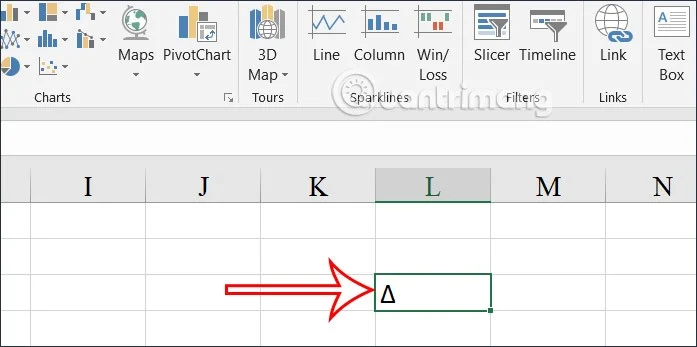
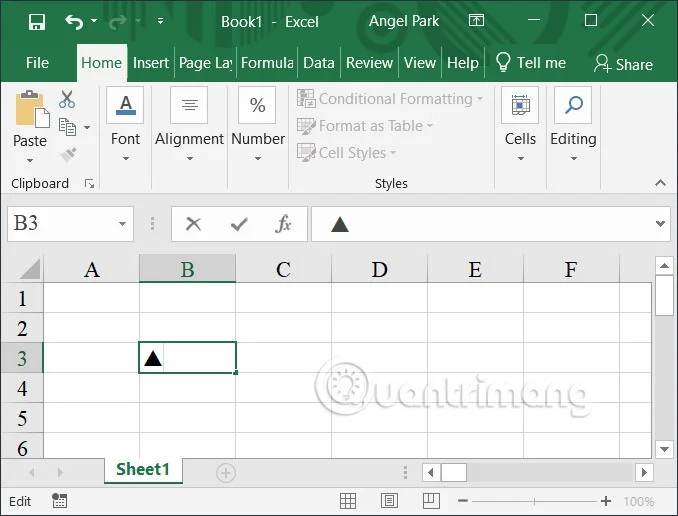
In addition to helping you work quickly, shortcuts in Excel can also help you enter symbols quickly. With the delta symbol in Excel, you will hold down the Alt key, then type the 3 key and the 0 key , then release your hand.

We use the numeric keypad to display the delta symbol in Excel.
Instructions for inserting delta symbol in Excel

2. Use font to insert Excel delta symbol

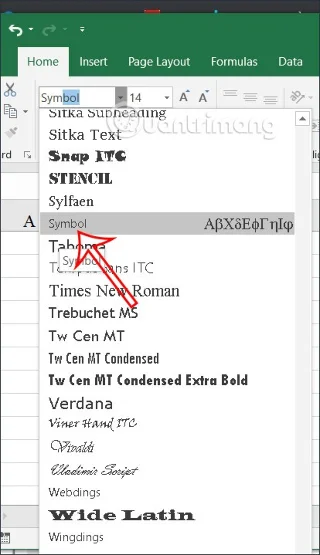
First, type the letter D in the box you want to insert . Then we will change to the Symbol font .

Instructions for inserting delta symbol in Excel

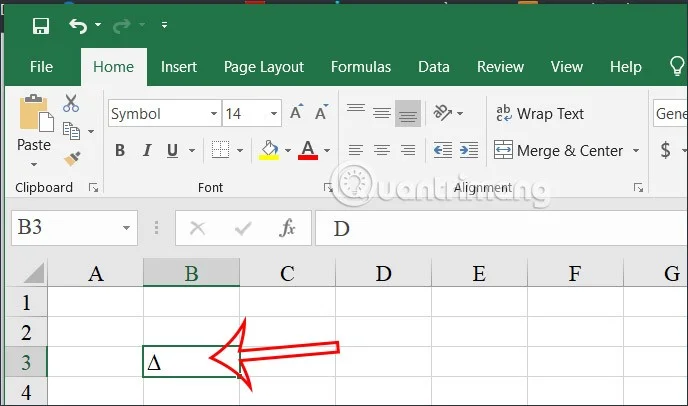
The resulting letter D is also converted to delta symbol as shown below.

Instructions for inserting delta symbol in Excel

3. Insert delta symbol from symbol tool in Excel

Step 1:

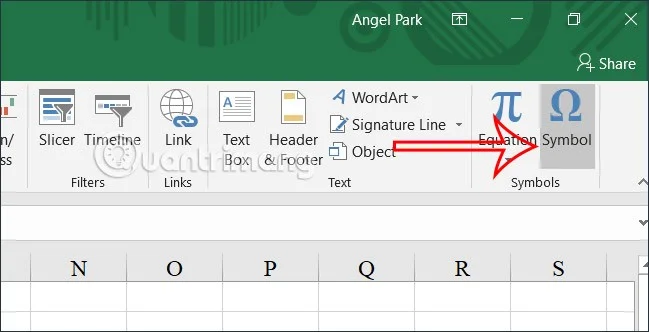
At the Excel interface, click Insert and then click the Symbol tool to insert a special symbol into Excel.

Instructions for inserting delta symbol in Excel

Step 2:

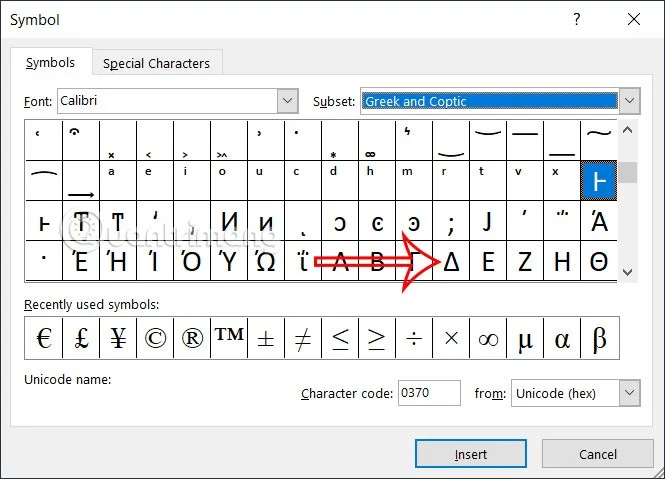
Display the special symbols table in Excel. At Font you choose Calibri , at Subset we will choose Greek and Coptic . As a result you will see the delta symbol in this interface. Click Insert to insert into Excel.

Instructions for inserting delta symbol in Excel

As a result we also get the delta symbol in Excel.

Instructions for inserting delta symbol in Excel

4. Use the CHAR function to insert the Excel triangle symbol

Step 1:

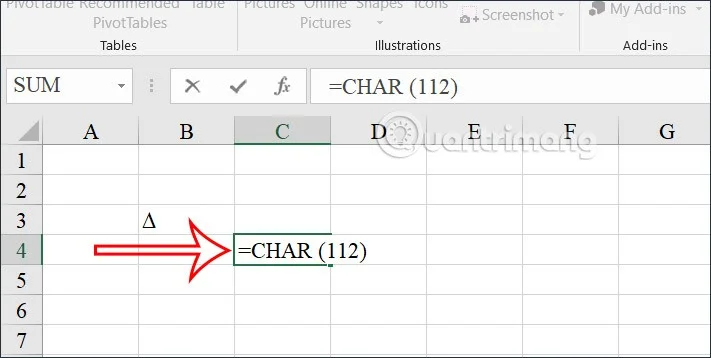
In a cell in Excel you will enter the formula =CHAR (112) or =CHAR (114) .

Instructions for inserting delta symbol in Excel

Step 2:

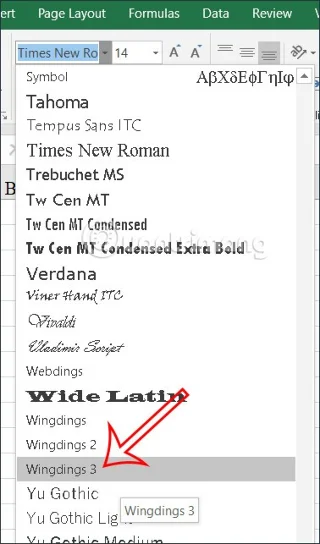
In the display symbol we will switch to the Wingdings 3 font to create a triangle symbol in Excel.

Instructions for inserting delta symbol in Excel

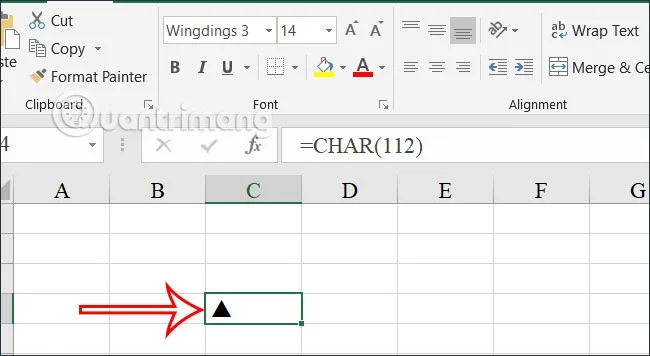
The symbol will then change to a triangle icon.

Instructions for inserting delta symbol in Excel

5. Insert delta symbol in Excel automatically

In case you often have to use the delta symbol, you can use the Excel AutoCorrect feature.

Step 1:

First, you also need to insert a delta symbol into Excel as a template . Then, copy this symbol .

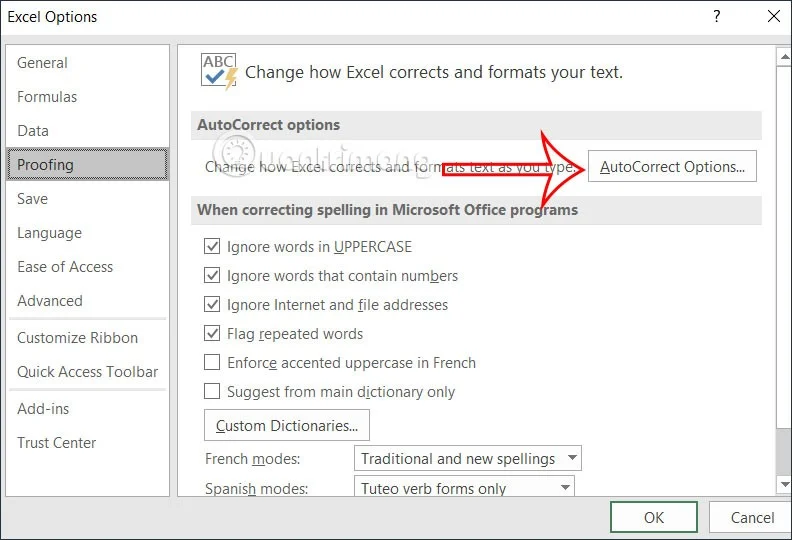
Next, click File, select Excel Options . In the new interface, click Proofing . Look to the right and click AutoCorrect Options .

Instructions for inserting delta symbol in Excel

Step 2:

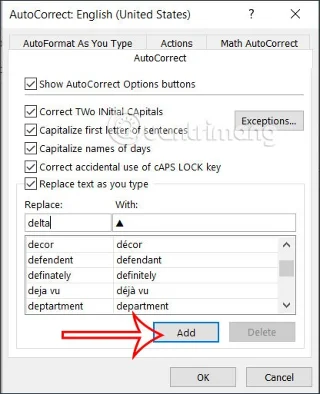
Then in this interface you will enter the triangle symbol in the With line , and the original word of your choice in Replace . Click Add to save this abbreviation.

Now when you type the root word and press Enter it will be replaced by a triangle symbol.

Instructions for inserting delta symbol in Excel

Laisser un commentaire

Modifier l'emplacement de stockage par défaut de l'espace de travail ONLYOFFICE

Modifier l'emplacement de stockage par défaut de l'espace de travail ONLYOFFICE

Déplacez les données du portail depuis le disque par défaut vers un fournisseur de stockage cloud compatible, ou déplacez les données Docker en toute sécurité en modifiant leur mappage de volume hôte.

Supprimez complètement le serveur de documents ONLYOFFICE de Linux.

Supprimez complètement le serveur de documents ONLYOFFICE de Linux.

Identifiez si Document Server utilise un package Linux ou Docker, supprimez uniquement ses composants et vérifiez les données restantes sans supprimer par erreur les services partagés.

Réduisez les délais de coédition sur ONLYOFFICE en identifiant le goulot d'étranglement.

Réduisez les délais de coédition sur ONLYOFFICE en identifiant le goulot d'étranglement.

Identifiez les ralentissements de l'édition collaborative en fonction de la pression sur les ressources Docker, des connexions proxy ou de la charge des documents, puis choisissez la solution qui correspond à vos mesures.

Configurer HTTPS pour ONLYOFFICE Docs dans Docker

Configurer HTTPS pour ONLYOFFICE Docs dans Docker

Choisissez où le protocole TLS doit se terminer, montez un certificat et une clé privée de confiance en toute sécurité et vérifiez l'accès HTTPS à un serveur ONLYOFFICE Docs conteneurisé.

Connectez une application PHP à ONLYOFFICE Docs et enregistrez les modifications.

Connectez une application PHP à ONLYOFFICE Docs et enregistrez les modifications.

Intégrez l'éditeur ONLYOFFICE dans votre application PHP, signez sa configuration avec JWT et enregistrez les fichiers modifiés via une fonction de rappel sécurisée.

Conservez la vérification orthographique ONLYOFFICE sur la langue de votre choix

Conservez la vérification orthographique ONLYOFFICE sur la langue de votre choix

Définissez la langue de correction pour l'ensemble du document ou pour un texte sélectionné, vérifiez que la correction orthographique est activée et identifiez les cas où un dictionnaire serveur est manquant.

Suivre les modifications lors de la réouverture d'un document

Suivre les modifications lors de la réouverture d'un document

Activez le suivi des modifications permanent pour tous les utilisateurs d'un document ONLYOFFICE, vérifiez que les modifications sont bien enregistrées et comprenez les limites de ce paramètre.

Identifier le flux en amont pour résoudre l'erreur 502 de Nginx d'ONLYOFFICE

Identifier le flux en amont pour résoudre l'erreur 502 de Nginx d'ONLYOFFICE

Déterminez si Nginx, le réseau Docker ou un service interne ONLYOFFICE renvoie une erreur 502, puis vérifiez le serveur en amont corrigé et effectuez un contrôle d'intégrité.

Suivi du rappel d'enregistrement lorsque ONLYOFFICE ne sauvegarde pas sur Nextcloud

Suivi du rappel d'enregistrement lorsque ONLYOFFICE ne sauvegarde pas sur Nextcloud

Diagnostiquez les échecs d'enregistrement ONLYOFFICE en vérifiant la route de rappel Nextcloud, les redirections proxy et les journaux de stockage, puis vérifiez que le fichier modifié est bien conservé.

Empêcher le serveur de documents ONLYOFFICE de manquer de mémoire VPS

Empêcher le serveur de documents ONLYOFFICE de manquer de mémoire VPS

Identifiez la cause des plantages de mémoire d'ONLYOFFICE, vérifiez les limites de Docker, dimensionnez correctement la RAM du VPS, ajoutez du swap en toute sécurité et vérifiez que les documents s'ouvrent et s'enregistrent correctement.