Accueil
» Wiki
»
How to enable end-to-end encryption on Messenger
How to enable end-to-end encryption on Messenger
Messenger's end-to-end encryption feature will increase the level of security and privacy for messages and calls. Then only you and the person you are chatting with will be able to see, read your messages or listen to your calls. When you log in to Messenger on another device, you will have to set up a PIN to be able to read the end-to-end encrypted messages for your Messenger account. Here are instructions for turning on Messenger's end-to-end encryption,
How to enable end-to-end encryption on Messenger
Step 1:
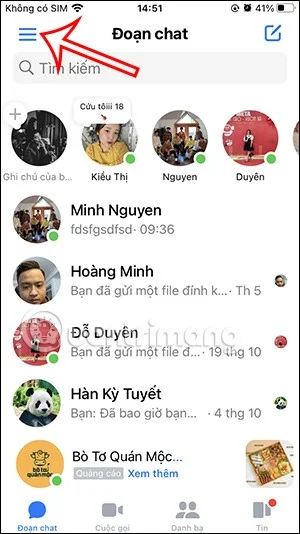
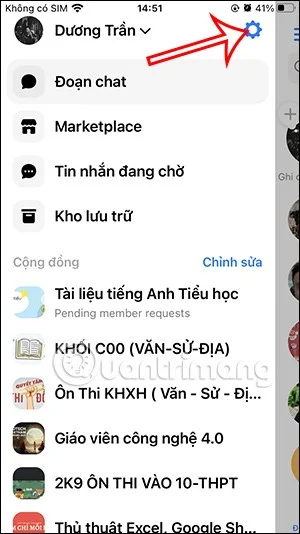
On the Messenger app interface, click on the 3-dash icon in the top left corner. Next, switch to the new interface, the user clicks on the gear icon .
Step 2:
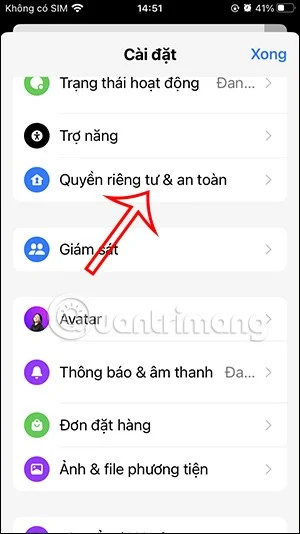
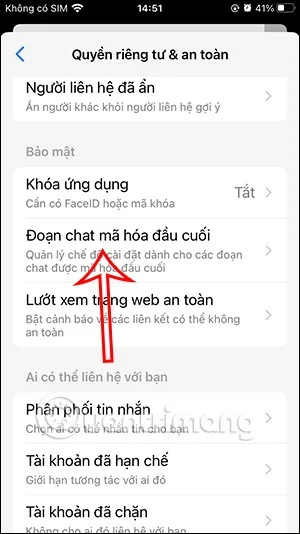
Display the options interface for the Messenger application, you click on Privacy & security settings . Continue to click on End-to-end encrypted chat . Now we will see the option for the Messenger end-to-end encryption feature, you click on Secure storage .
Step 3:
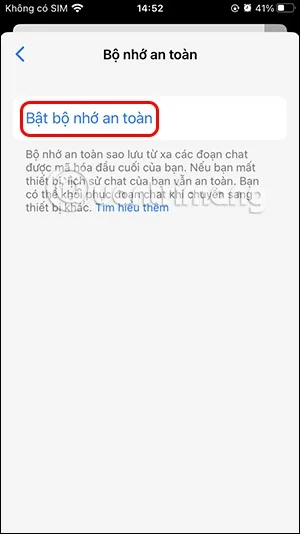
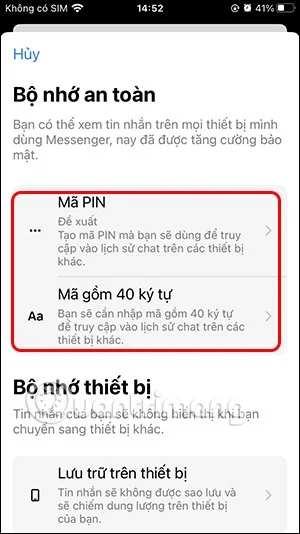
We'll tap Enable Secure Storage to enable Messenger's end-to-end encryption. In this new interface, you'll have the option to create a Messenger end-to-end encryption PIN or use the 40-character code provided by Messenger.
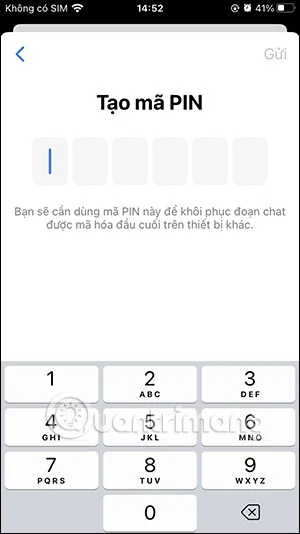
Display the interface for us to enter the 6-digit PIN code of your choice.
So we have successfully enabled end-to-end encryption on Messenger. When you log in to your Messenger account on another device, you need to enter your PIN to view encrypted messages in your Messenger account.
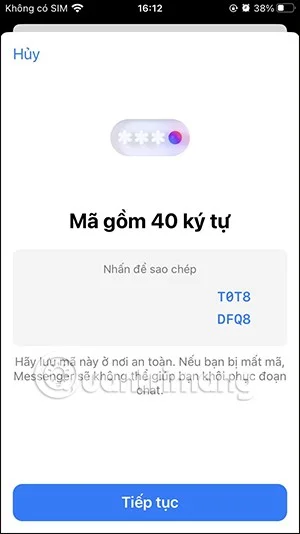
If you want to use Messenger's character code , click Generate 40-character code to copy this code when needed.
Video tutorial on turning encryption on and off on Messenger